
The Klever Guide On eBooks
by
Aaron Ansah-Agyeman
Hello, Family.
We received some feedback on our recent Bookstore addition which came with books that could be downloaded.
Evidently, some found it hard to download the books and, even after download, couldn’t locate where the books had been stored on their mobile devices!
Sorry about that, folks!
As always, we took your opinions into consideration, and decided to move away from the PDF and WORD formats and do full eBooks to enhance your reading experience.
Welcome to the Klever Guide on how to enjoy our eBooks with maximum bliss.
This short graphical tutorial is aimed at helping you install an eBook Reader on your mobile device which you can use to read the eBooks you purchase from us.
Some of you already might have eBook readers, and so we encourage you to use them.
However, to those of you who are fairly new to the evolution of eBooks, we hope this little tutorial will get you started and zapping nicely into the new era of reading!
Alright, let’s get down to it!
Do not be overwhelmed in the least because it is all so easy!
Phase 1
Getting your eBook
a. Purchase your eBook
b. Enter your password
c. Download
We’re using the first ChrisEffe Bliss, The Wedding Of my Ex, as the example in this case.
So, kindly go to our bookstore and use xieXIE as the password to download The Wedding Of My Ex.
Now, don’t worry about where your eBook has been stored on your phone!
We’re going to use this tutorial to read the book on your phone, so kindly follow this.
Just follow the simple steps below and you will have your book in a jiffy to enjoy!
Phase 2
Installing an eBook Reader
a. Go to Play Store on your android phone or App Store on your iPhone.

b. type ebook reader in your search bar


d. install this Ebook Reader

e. open the app

f. allow access to media and files

g. confirm search for books and documents.
Phase 3
Locating your Ebooks
Congratulations! You’ve successfully installed your Ebook Reader!
Excellent!
Now, let’s locate the Klever eBook that you downloaded, in this case, we’re using The Wedding Of My Ex.
a. The interface of the ebook reader will open as indicated in the image below. It will list all books and documents on your phone.
Now, click on the 3 horizontal lines that look like an inverted triangle at the top right corner as indicated below.

b. After clicking the 3 eliptical lines at the top right corner, you will get the screen as indicated below, with various book formats checked.

c. Uncheck all the book formats. Leave only EPUB as indicated below.
Then press the CONFIRM button.


d. Good.
Now your Ebook Reader is set to read books in the Epub format which Klever eBooks have been formatted.
The next step is to locate the eBook.
At this stage, the App will automatically display the book after you press CONFIRM in the step above.
If the book does not display, don’t worry!
Just follow the next step below.
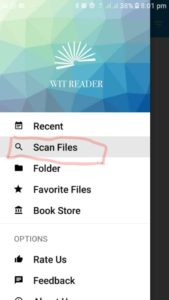
At the top left corner of your screen, you will see 3 vertical lines of the same length and displaying the menu words SCAN FILES.
Tap on the 3 lines, and the menu will display as shown below.
Simply tap on the SCAN FILES menu.

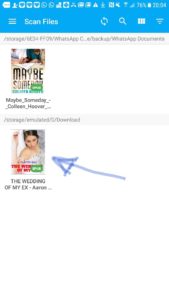
e. Excellent! Your favourite Klever Ebook will now be displayed on your screen as indicated below! Congratulations.
Now, every time you open your eReader App, all your eBooks will be displayed. Just click on it and enjoy a slice of paradise!
Excellent!
Now, let us show you a few setting on your App Reader to enhance your reading pleasure!
Phase 4
Basic App Settings
a. To start reading, tap on the book you want to read, in this case, The Wedding Of My Ex.
The reader will open the story to the first page as shown below.

b. Scrolling Effect
Now, let us set the scrolling effect.
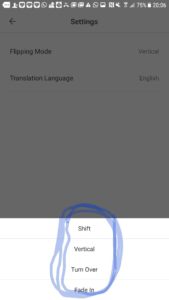
A scrolling effect is how you scroll from one page to the next as you’re reading the story. Some people want the story to keep scrolling VERTICALLY as they read. Others prefer the pages to FADE IN or scroll HORIZONTALLY.
Well, great news.
You can set your scrolling effect quite simply in the App.
First, on the first page, look at the top right corner and you will see 3 vertical dots as indicated in the image below.
Tap on it, and it will open the SCROLLING effects as indicated in the second image below.
Experiment with the 4 different scrolling effects and decide which you prefer and use it!

c. Bookmarks
A bookmark is simply a way of marking the current page you’re reading.
When you’re reading a physical book, sometimes you fold a corner of the page in, or put a piece of paper inside, or insert a piece of thread to mark where you are currently reading.
Some books, like Bibles, even had ribbons where you could put inside the pages to mark them.
Well, with digital readers, we use bookmarks to mark the place we are currently reading.
In this tutorial, there are two Bookmarks available.
1. The App Reader’s Chapter Bookmarks
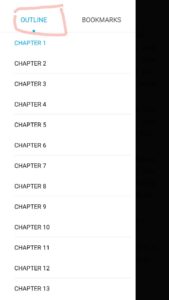
In this case, the eReader App lists all the CHAPTERS in the book in chronological order.
You can access ALL CHAPTERS by tapping on the lower left corner of the screen where there are 3 vertical black lines as shown in the image below.
It will open the chapters as shown in the second image. Just tap any of the chapters and the app will open straight on that chapter.

2. Setting Manual Bookmarks
Sometimes, you want to set a Bookmark yourself because you want to pause reading.
In this case, you want to Bookmark the EXACT OR SPECIFIC PAGE you’re reading.
This is also very possible.
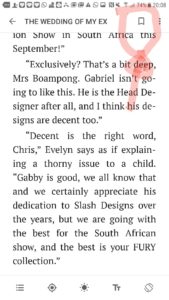
Now, on every page you’re reading there is a Bookmark Icon at the top right corner.
Just tap lightly on the screen and look at the top right hand of your screen and you will see the Bookmark Icon.
It looks like what we have indicated in the first image below.
Just tap on it and it will change to a blue or purple colour which indicates that the page has been bookmarked. It will appear as shown in the second image below.
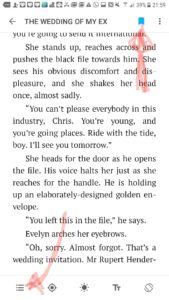
Now, if you want to access your Bookmark and resume reading, just tap on the 3 black lines at the bottom left of the screen as shown in the image below.
Remember, you need to tap lightly on the screen page for these buttons below to pop up.
Click on the 3 vertical lines, and it will open the Bookmarks page.
At the top right of the Bookmarks page you will notice the word BOOKMARKS.
Tap on it, and it will open all your Manual Bookmarks as shown in the image below.
Tap on the page you want to go to and straight away the app will open to that exact page.


Well, that’s it!
You can now go ahead and enjoy your eBook!
Well, let me also point this out briefly!
You can change the FONT and the FONT SIZE of the story you’re reading if they are to big, or too small!
You can also brighten the screen or dim it a bit depending on your preferences.
These are all possible on the App Reader.
As you’re reading, tap on the screen gently.
The SETTINGS ICONS will appear as indicated in the image below:

The first icon on the left is the BOOKMARK ICON as we have already treated.
The next icon is a PAGE FLIPPER in the form of a SLIDER. When you slide it, moves quickly between the pages.
The next one is the BRIGHTNESS AND PAGE COLOUR slider. You can change the background and brightness levels with this one.
The last but one icon is the FONT and FONT SIZE icon. It enables you to change the font and the font size of the story to your preference.
Finally, the last icon is the ORIENTATION ICON which lets you read the story in either the Landscape [horizontal] or Portrait [Vertical] positions.
Alright!
That’s it!
You’re all set to go!
Enjoy Klever stories now in eBook format, and experience that slice of paradise!
COPYRIGHT PROTECTED
